

Snippet editing in Parrot can be done on both generated snippets and type/pasted snippets. To edit a snippet, open the snippet you’d like to edit and type your changes into the appropriate code block. Parrot will automatically update your snippet in the background (no need to click a “save” button). A snippet has three parts, all of which can be edited:Documentation Index
Fetch the complete documentation index at: https://docs.codewithparrot.com/llms.txt
Use this file to discover all available pages before exploring further.
- The code blocks that make up your snippet.
- The example usage for your snippet.
- The documentation for your snippet (editable as Markdown).
Editing Your Snippet’s Settings
Currently, the following fields can be edited on a snippet:- The name of the snippet.
- The project the snippet belongs to.
- The tags for snippet (used by Parrot when searching existing snippets).
- The keyboard shortcut you’d like to use in your IDE (automatically assigned when copying or exporting your snippets for your IDE).
Copying a Snippet for Your IDE
While the recommended way to copy snippets for your IDE is to use the Export IDE Snippets feature (so you can export all of your snippets as a single file), you can optionally copy an individual snippet via the snippet editor. Above the code input for your snippet, click the icon for your IDE (currently, Parrot supports VSCode snippets and Sublime Text completions).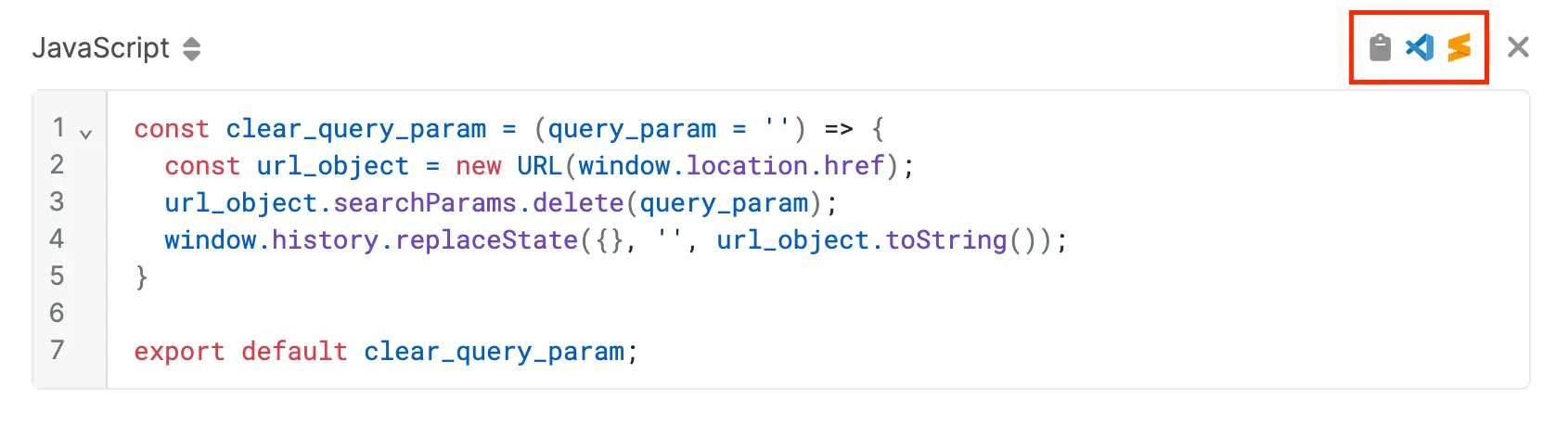
Using Cursor? Choose the VSCode option! Cursor is built on top of VSCode and supports its existing snippet format.